What the warning means
macOS shows the warning whenever a mounted volume disappears without being unmounted first. From the system's point of view the drive was simply gone from one moment to the next — it never got the chance to finish writing and to mark the volume as cleanly closed.
The message is not a diagnosis of the drive. In most cases the hardware is fine; what went missing was the orderly goodbye.
Why it mostly happens around sleep
The usual trigger is sleep. Many USB-C and Thunderbolt docks and hubs cut power to their ports when the Mac goes to sleep or the lid closes. A bus-powered drive loses power, the volume vanishes, and on wake macOS reports what it saw.
- Docks and hubs that power down their ports during sleep
- Bus-powered SSDs and hard drives without their own power supply
- Loose or worn cables and adapters
- Spinning disks that go to sleep and take too long to answer
- Macs waking briefly for a background task and sleeping again
A drive that is plugged in directly and has its own power supply is rarely affected. Anything hanging off a dock is a candidate.
Is your data at risk?
Usually less than the warning suggests. APFS and HFS+ keep a journal, so the file system itself stays consistent. What can be lost is whatever was still being written in the last seconds before the power went away — a file you just saved, a download in progress, a Time Machine backup that was mid-way.
Cards and drives formatted as exFAT or FAT32 — camera cards, drives shared with Windows — have no journal and are the ones to worry about. Repeated abrupt disconnects can leave them needing a repair in Disk Utility.
Preventing it by hand
The reliable fix is also the oldest one: eject before you close the lid. Select the drive in Finder and press ⌘E, or click the eject symbol in the sidebar. macOS waits for pending writes and closes the volume cleanly; after that, the dock can cut the power all it likes.
What macOS does not offer is a way to do this automatically. There is no setting that ejects external drives before sleep — which is why the warning keeps coming back as soon as you forget once.
Letting Ejectify do it
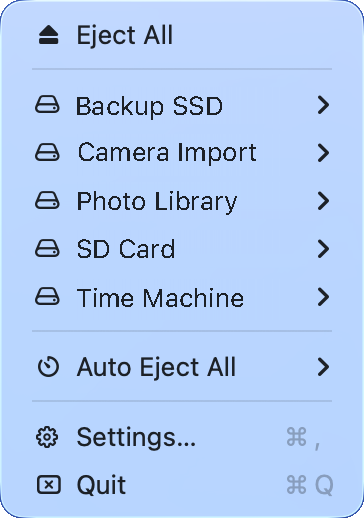
Ejectify is a small menu-bar app for exactly this. One click on “Eject All” ejects every external volume, and the Auto Eject unlock adds the part macOS is missing: Eject before sleep. As the Mac goes to sleep, Ejectify ejects your external volumes first — before the dock has a chance to cut their power.
- Eject before sleep, mount again after wake
- Eject on a timer, or everything at once from the menu bar
- Eject from your iPhone or iPad
- Let an AI assistant eject drives through MCP — locally or over the hosted relay
With “Mount them again after wake” on, drives are unmounted instead of ejected, so they stay attached and Ejectify mounts them again when the Mac wakes. Encrypted volumes are left mounted on purpose: unmounting would lock them, and Ejectify never asks for a password.
Ejectify never forces a volume off. If something is still in use, the eject fails and you are told which volume and why — on the Mac, and on your iPhone if you use the companion app.